
Inspection Process - Access
- Oct 11, 2024
- 3 min read
Updated: Jun 24, 2025
Receiving the SMS
Once an inspection has been created, the seller will receive an SMS text message with a link to start the inspection.
They’ll click on the link in the SMS to access the inspection.

Access code authentication
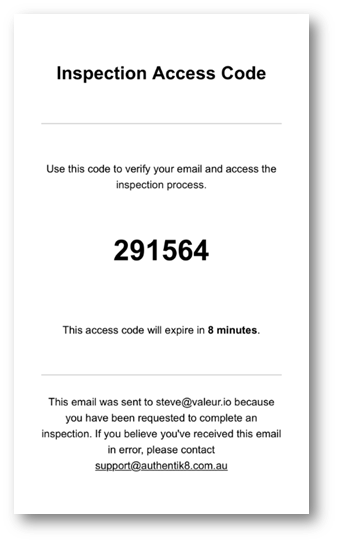
The seller will be prompted to confirm their email address to receive an Access Code, which is a one-time password (OTP). | An email will be sent to the provided email address and will contain the Access Code | The seller will enter the Access Code in the Authentik8 application to gain access to the inspection. |
 |  |  |
Accessing the Inspection
On the seller’s first login, they’ll be presented with Terms of Use. They must click Agree and Continue, to access the inspection. | The home screen of the inspection shows an overview of the number of required documents to be submitted. The progress will be displayed (e.g., 0 out of 13 documents completed). The inspection homepage will also show a list of action items that need to be completed. |
 |  |
Location Sharing
Some inspections now require or recommend that sellers share their location while completing key steps like uploading photos or documents. This helps confirm the location of the vehicle and improves the reliability of inspection results.
Depending on the lender’s configuration, location sharing may be:
Recommended – Seller will see a prompt encouraging them to share their location, but they can continue without it.
Mandatory – Seller must allow location access to proceed. If they block location sharing, they won’t be able to complete the inspection.
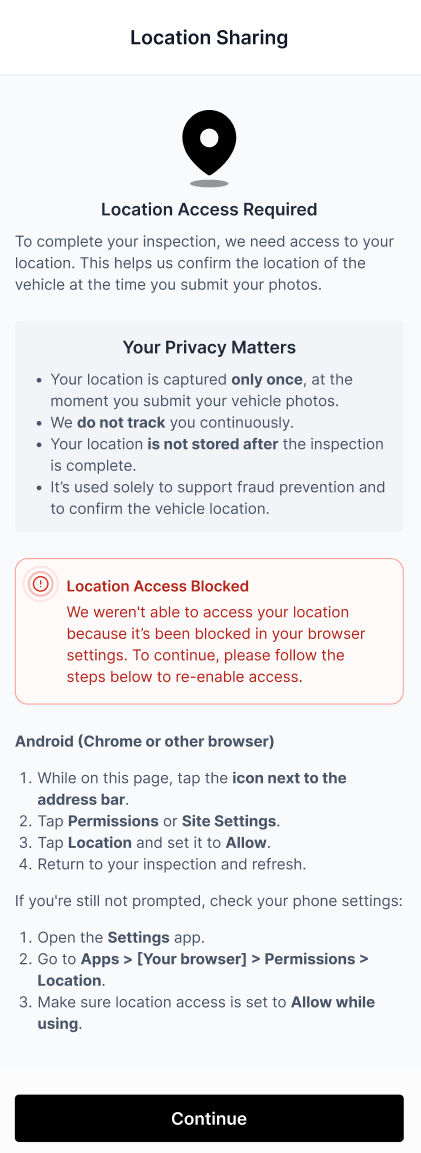
Mandatory Location Sharing message to seller | iPhone message where location sharing is blocked | Android message where location sharing is blocked |
 |  |  |
Supporting Sellers with Location Sharing Issues
If a seller has declined location access and is now unable to proceed (especially where Mandatory location sharing is enforced), they may need help re-enabling permissions in their browser or device settings.
The steps to fix this can be confusing, so here’s how you can guide them through it.
Common Scenario: Seller Blocked After Denying Location Access
If the seller reports seeing the “Location Access Blocked” message or is unable to submit a step, they’ve likely blocked access on their device or browser.
They’ll need to manually re-enable location permissions.
📱 Seller guide for iPhone or iPad (Safari or Chrome)
While on this page, tap the icon next to the address bar.
Tap Permissions or Website Settings (may appear as the three-dot “⋯” menu).
Tap Location and set it to Allow.
Return to this page and refresh.
Can’t find location settings in your browser? Try this instead:
Open the device Settings app.
Go to Privacy & Security > Location Services.
Make sure Location Services is turned ON.
Scroll down and tap your browser (e.g. Safari or Chrome).
Set location access to While Using the App or Ask Next Time.
Reopen your browser and refresh this page.
🤖 Seller guide for Android (Chrome)
While on this page, tap the icon next to the address bar.
Tap Permissions or Site Settings.
Tap Location and set it to Allow.
Return to your inspection and refresh.
If you're still not prompted, check your phone settings:
Open the Settings app.
Go to Apps > [Your browser] > Permissions > Location.
Make sure location access is set to Allow while using.
Tip
If the seller is still stuck after adjusting their location settings:
You can resend the inspection invite to a different phone number or device the seller has access to. This can help reset any blocked permissions and allow the seller to proceed.
To do this, open the inspection in the portal, click Resend Invite, and update the seller’s mobile number if needed.
If issues continue, contact our support team and we can work directly with the seller to resolve the issue.