
Profile Management
- Jul 18, 2024
- 1 min read
Updated: Feb 21, 2025
Accessing the Profile Management Screen
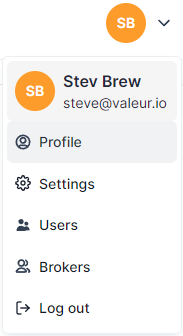
Click on your initials avatar in the top right corner of the application.
Select "Profile" from the drop-down menu.
Profile Tabs Overview
The profile management screen contains four tabs: My Details, Initials Avatar and Change Password.
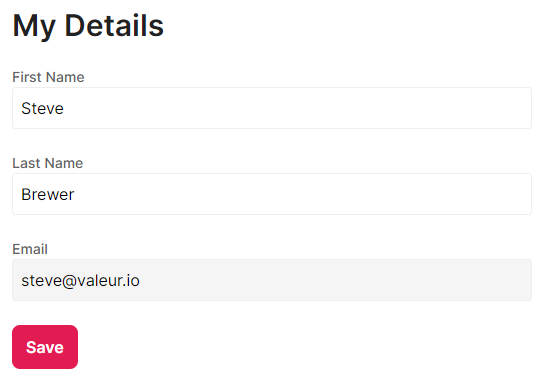
1. My Details
Here, you can edit your first name and last name.
Note: Your email address is fixed as it serves as your username.
2. Initials Avatar
Change your displayed initials in the top right corner.
Choose a colour for your initials avatar.

3. Change Password
Enter your current password.
Enter a new password and confirm the new password.
Click "Save" to update your password.

Tips and Troubleshooting Ensure you save changes in each tab before navigating away to avoid losing any updates. If you encounter issues with changing your password, double-check that the new password meets the required criteria.