Finalising an Inspection
- Jul 29, 2024
- 1 min read
Updated: Feb 24, 2025
Submitted status
Once a seller completes all inspection items, the inspection will automatically move into ‘Submitted’ status.
Once in ‘Submitted’ status, a notification email is sent to both the creator of the inspection and the Lender.
Accessing the final inspection report
The final inspection report can be downloaded directly from the inspection details screen.
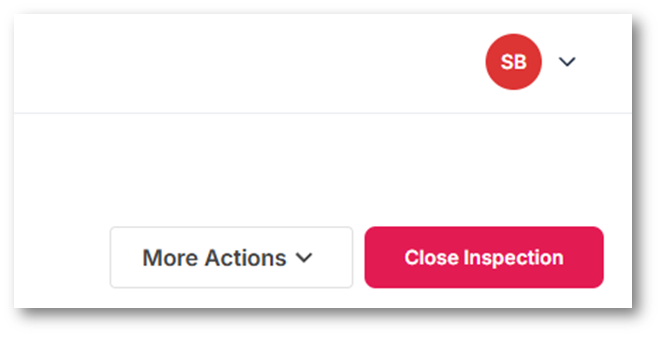
Click More Actions in the top right of screen

Click Inspection Report
The final inspection report will download directly in the browser.
Alternatively, the inspection report can also be downloaded via the Submitted Inspection Notification Email.

Click through the download link and follow the inspections to download the final inspection report.
Closing an inspection
An inspection can be closed at any time and is done to remove old inspections from the system. Before closing an inspection, ensure you have downloaded the Final Inspection Report and saved it for your records. Failure to download the final inspection report could result in data loss post-archiving.
IMPORTANT: Marking an inspection as 'Closed' will finalise it, preventing the seller from making any further edits. You can still access the details for 7 days, after which it will be removed from Authentik8. This is done for data security purposes.
To close an inspection:
Navigate to the inspection detail page for the inspection you wish to close
Click the Close Inspection button in the top right corner of the page

Review the prompt and confirm by clicking Close Inspection
A closed inspection will display the status as Inspection Closed and the seller will no longer have access to make changes to the inspection.