Resupply Request
- Feb 19, 2025
- 2 min read
Updated: Feb 20, 2025
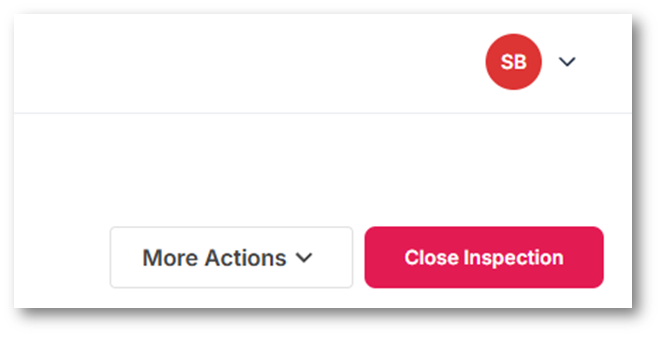
To resend the inspection invite SMS, navigate to the More Actions dropdown menu, located at the top-right corner of the Inspection Details page.

The 'Resupply Request' action streamlines the process of requesting sellers to resupply previously submitted documents. This action ensures lenders and brokers can obtain updated or corrected information efficiently.
Steps for Lender or Broker:
1. Initiate Resupply Request
Navigate to the inspection details page.
Click the "More Actions" dropdown menu and select "Resupply Request."
2. Select Documents
A panel will open, allowing the lender or broker to choose one or more verification steps that need to be resupplied by the seller.

3. Compose Custom Message
After selecting the required verification steps, click "Next."
Write a custom message to be sent to the seller.
The system will append the inspection expiry date and a link to the inspection to the end of the message automatically. <custom message>
Please complete before dd/mm/yyyy.
Resume inspection: {inspection link}
4. Confirm Request
Click "Confirm" to finalise the resupply request.
The system will update the inspection:
The statuses of the selected documents will change to "Resupply Pending."
The overall inspection status will change to "Resupply Request Pending."
Seller Experience:
1. Notification
The seller will receive the custom message with a link to the inspection. <custom message>
Please complete before dd/mm/yyyy.
Resume inspection: {inspection link}
2. Inspection Updates
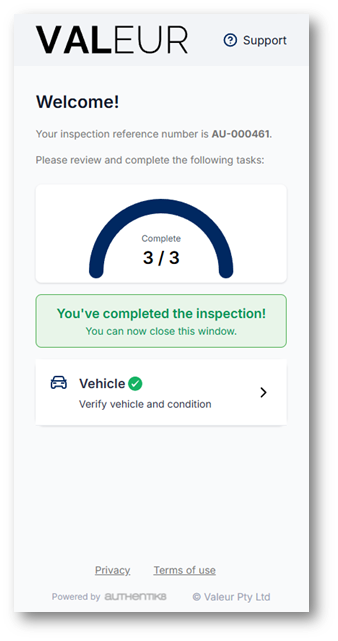
Upon accessing the inspection, the seller will see a message at the top of the home page indicating the need to redo certain verification steps and they will be marked with a red "!" icon, highlighting the required resubmissions.

Upon completion of the resubmission request task, the seller will be prompted with a confirmation message and the ‘Inspection successfully submitted’ notification email may be sent if the inspection is complete.